YouTube to study notes: video analysis, captions and PDF export
Use Papyr to analyze a lecture or import its captions, create useful notes, and export supported pages as PDF or PNG.
By Papyr · Updated September 16, 2026Start with the video you want to understand
Open Manual Notes and paste a YouTube URL into the link import. If the video is a milestone in your learning path, use its notes action to open the same import choice. Papyr keeps the path context so saved notes can connect back to the milestone.
Choose video analysis or captions
Captions only imports available subtitles for free; it does not inspect on-screen diagrams. Watch with Gemini analyzes the video, including spoken material and visible boards or demonstrations. This can be useful when an explanation depends on a slide or worked example. Availability, legibility and model limitations can affect the result.
Review the import before making notes
Video analysis and note generation are separate steps. Captions are the free default. For slides and demonstrations, choose optional video analysis: 3 credits per started 10 minutes of your selected range (1 hour: 18 credits). Approve the total quote before analysis; completed sections are saved so you can resume. Then read the imported material and check important claims or equations against the video. A Gemini key uses provider billing; platform video analysis uses Papyr credits when available. Generating notes may require additional credits or an OpenAI key.
Pick the format that helps you study
Use an editable study page for explanations you want to refine, or visual notes for a process, comparison or concept map. For a long lecture, split the material into focused sections rather than compressing every detail into one image. Clear notes should retain the mechanism and a useful example, not just a list of headings.
Save, export and return to the source
Save your result to the library, or return to its linked learning milestone. Use the export controls offered for that result: supported visual notes can be saved as PDF or PNG, and available exports depend on the note type and plan. Inspect the downloaded file before printing or sharing it. Papyr helps reduce manual note-taking; it does not guarantee a perfect transcript, complete visual interpretation or exam readiness.
Try it with a real teaching source
3Blue1Brown: But what is a Neural Network? ↗
Open the lesson’s video and copy its YouTube URL into Manual Notes. Start with one question: how do inputs, weights and activation produce a neuron’s output?
- Choose available captions, or optional video analysis when the diagrams matter. Review the quoted cost before approving analysis.
- Review the imported text, then choose visual notes or an editable study page. Ask for a labeled process and one worked example.
- Check the explanation against the lesson. Save the note and use the export controls available for your result and plan.
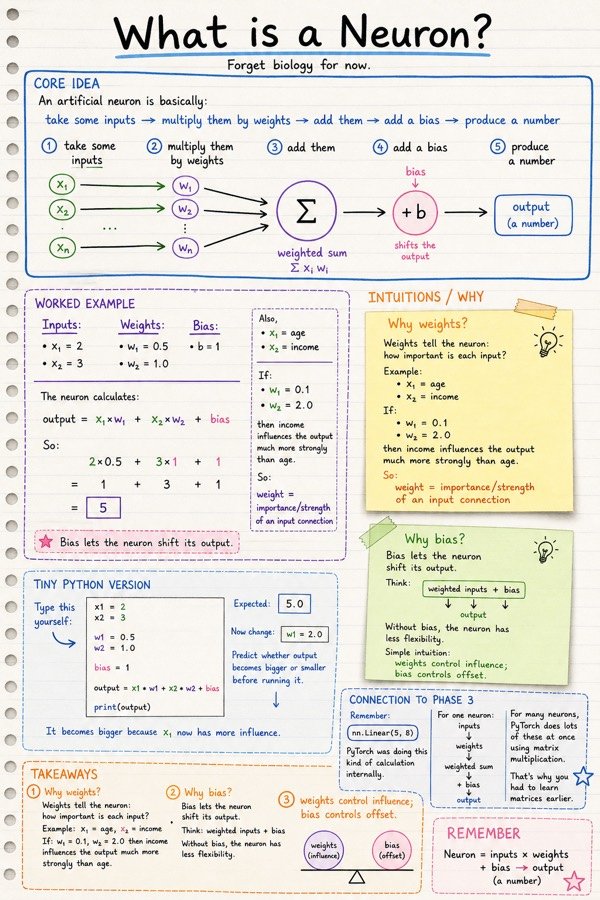
Download the sample image (JPG)
Import or analysis and note generation are separate steps. Review costs before generating; PDF/PNG export options depend on your note type and plan. See pricing and limits.
Make notes from a videoPut it into practice
Make notes from a video or see Papyr’s visual notes.